In this guide (6 sections)
- Why proposals stall between "sent" and "signed"
- What CRM proposals with e-signature should actually do
- Built-in or add-on: which CRM proposal setup fits you?
- How to write a CRM proposal template people actually sign
- Automate CRM proposal follow-up based on what the client did
- Connect the signature to payment before you call it done
Great call, proposal sent, then a week of silence. CRM proposals with e-signature fix that blind spot: the proposal is built from the deal, the client signs from their phone, and your CRM knows the moment they open it.
Why proposals stall between "sent" and "signed"
Proposals stall because nobody owns the gap after you hit send. The client is busy, the PDF is buried in their inbox, and you're guessing about whether to nudge them.
The numbers say the gap matters. InkDraft's roundup of Proposify and PandaDoc benchmarks puts the average proposal close rate at roughly 36%. The same roundup puts the median time from sent to signed at 3 to 5 days.
Speed helps at both ends. Proposals sent within 24 hours of the sales call close at the highest rate, and the close rate declines with each day of delay. Meanwhile, proposals with built-in e-signature close faster than ones that need printing, signing and scanning.
Picture a consultant who runs discovery calls on Tuesday and writes proposals on Friday. Each proposal starts as last month's Word file, gets edited by hand, and leaves as a PDF attachment. That's three days of cooling interest before the client even sees a price.
So the fix has two parts. Send faster, and make signing easy enough that a client can do it between meetings. A CRM with proposals and e-signature handles both, as long as you set it up on purpose.
What CRM proposals with e-signature should actually do
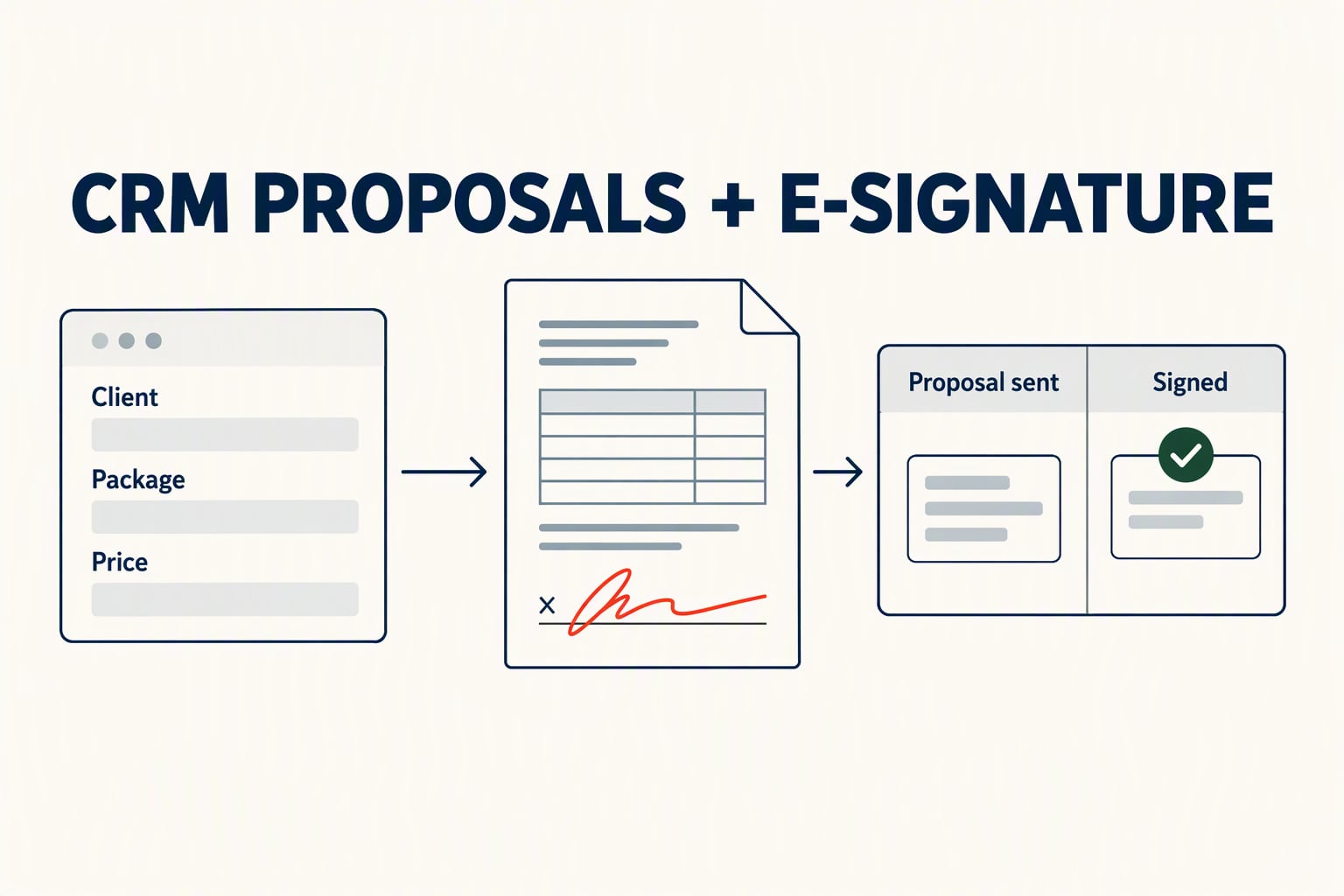
A good setup connects four steps: draft, send, track and sign. If any step happens outside your CRM, someone has to copy data or update a stage by hand, and that's where deals slip.
It also gives you a record. When a client asks six months later what they agreed to, the signed copy sits on their contact, not in someone's downloads folder.
Here's what each step should look like when it works:
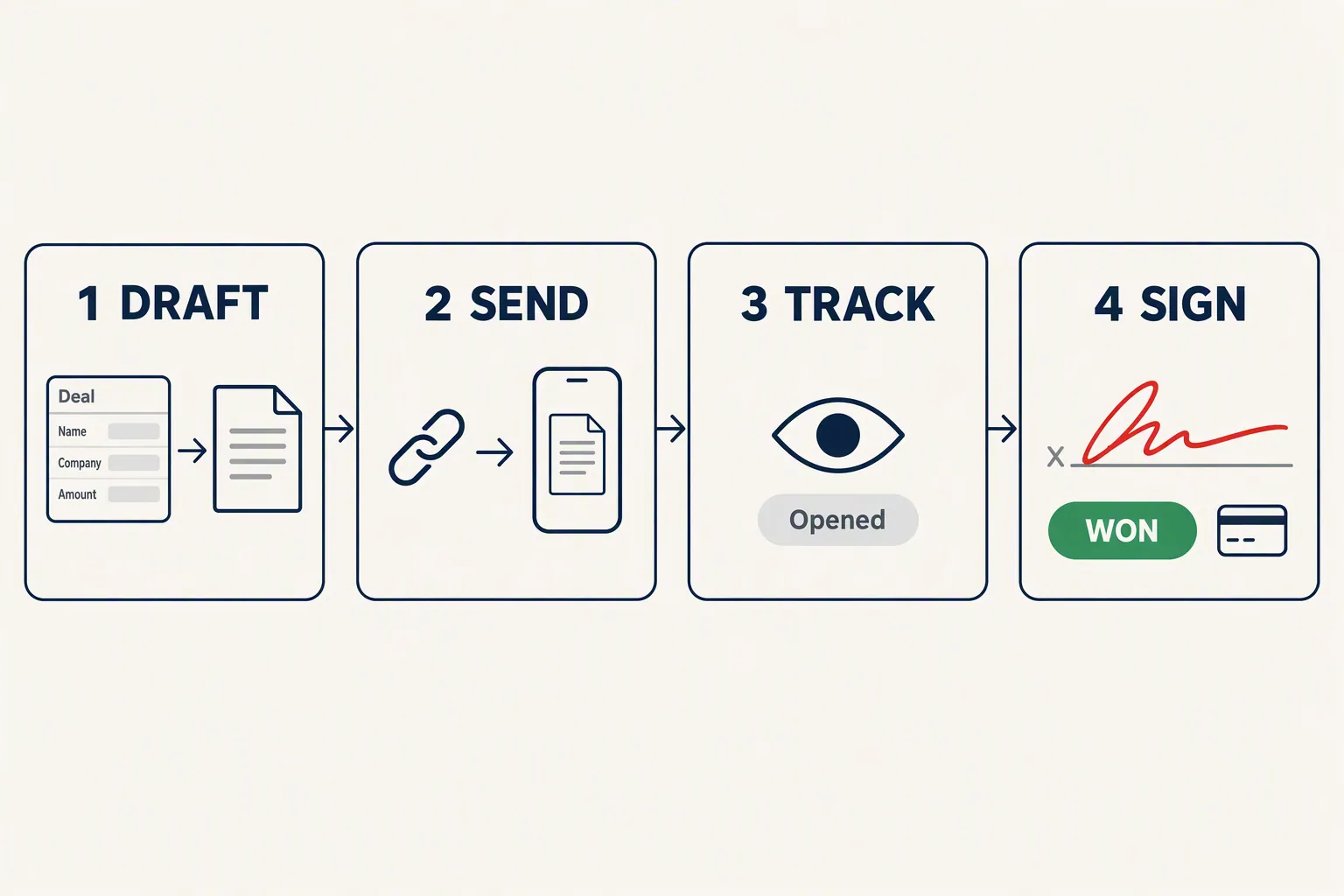
- Draft from the deal. The client's name, company, package and price fill in from the CRM record. You never retype an email address or get a number wrong.
- Send from the CRM. The proposal goes out as a link, not an attachment, so it opens on any device. Roughly 30% of proposal views happen on mobile, according to the same InkDraft benchmarks.
- Track opens. You see when the client opens it and how often. That tells you whether to wait, nudge or call, instead of sending the same "any thoughts?" email to everyone.
- Sign and move the deal. A signature moves the deal to "Won", logs a signed PDF to the contact, and can start payment. If your stages don't have a clear "Proposal sent" step yet, set that up first with our guide to CRM pipeline stages.
Built-in or add-on: which CRM proposal setup fits you?
The big question is whether your CRM can send and sign documents itself or needs a separate proposal tool. Built-in is cheaper and simpler. An add-on gives you nicer documents and deeper analytics, at a per-seat price.
Our take: if you're a solo coach or a small agency, use what's built in until it genuinely blocks you. A plain proposal that goes out the same day beats a gorgeous one that goes out on Friday. Pay for a separate tool when you need approval steps, heavy branding or detailed section-by-section analytics.
Here's how the common options compare, based on their own documentation (prices checked October 2026):
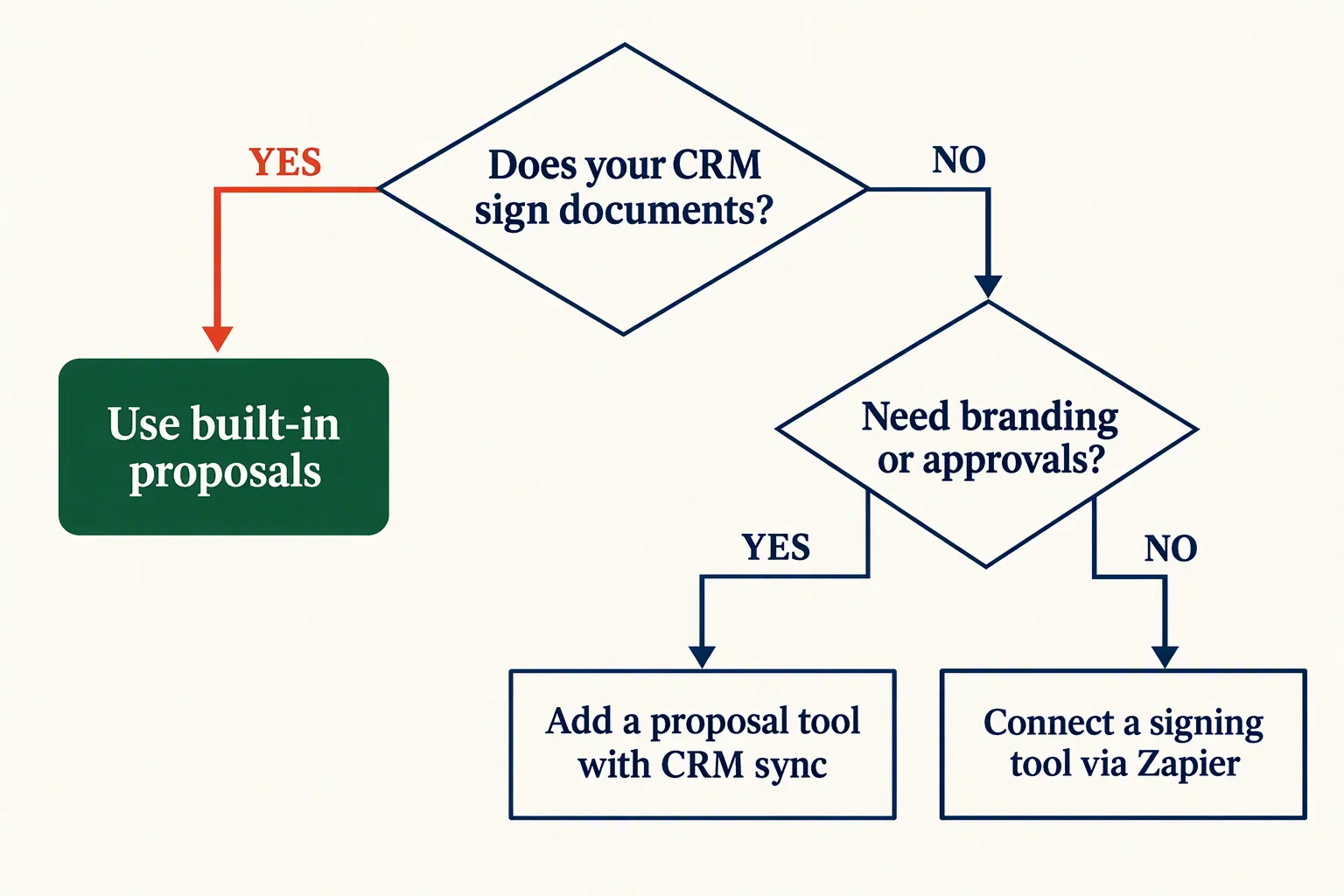
- GoHighLevel: Documents & Contracts is built in under Payments. You get templates, e-signatures with an audit trail (signer details, IP address, timestamps), payments inside the document, and workflow triggers when a document is sent, viewed or signed. For most coaches and agencies, this is all you need.
- HubSpot: e-signature works on quotes, powered by Dropbox Sign, but HubSpot's knowledge base ties quote configuration to Revenue Hub seats, which means Professional or Enterprise money. Contracts and other non-quote documents need a separate signing integration.
- PandaDoc: the add-on we'd try first if your CRM can't sign documents. Its Starter plan is $19 per seat a month and Business is $49, both billed annually, according to ERP Research's PandaDoc pricing breakdown. CRM integrations like HubSpot sit on Business, so budget for that tier.
- Systeme.io: no native proposals or e-signature. It's great for funnels, email and courses, but you'll need a signing tool connected through Zapier if you sell custom work.
How to write a CRM proposal template people actually sign
The best proposal template is short, specific, and puts the price where the client expects it. Nobody signs faster because you added a company history page.
Build one template per offer, not one per client. If you sell three packages, you need three templates, each pulling the client's details from the CRM. That's what makes a 24-hour turnaround realistic.
Cut anything the client already knows. Your bio, your process diagram and your testimonials belonged in the sales call. In the proposal, they push the price further down the page and give a hesitant reader more places to stop.
Use this structure:
- Their problem in their words. Two or three sentences from your call notes. It proves you listened.
- What you'll do and what you won't. A short scope list with clear limits stops scope creep before it starts.
- A pricing table, not a pricing paragraph. Benchmarks in the InkDraft roundup link pricing tables to higher close rates than prices buried in text. Offer two or three options when it fits your business.
- An expiry date. A proposal that's valid for 14 days gives the client a reason to decide and gives you a reason to follow up.
- One signature block at the end. Add payment right after signing if your tool supports it, so "yes" and "paid" happen in the same sitting.
Automate CRM proposal follow-up based on what the client did
Your follow-up should react to the client's behavior, not to a fixed calendar. Open tracking is what makes that possible, and it's the main reason to send proposals from your CRM.
Set up three rules and let the CRM handle the timing. Each one creates either a message or a task for you, depending on how personal it needs to be.
Keep the automated emails short and human. "Just checking this reached you" works. A third automated reminder in five days doesn't, because it reads like a robot chasing a debt. After two automated touches, hand the deal to a person.
- Not opened after 2 days: send a short, friendly email with the link again. Many unopened proposals are simply buried, not rejected.
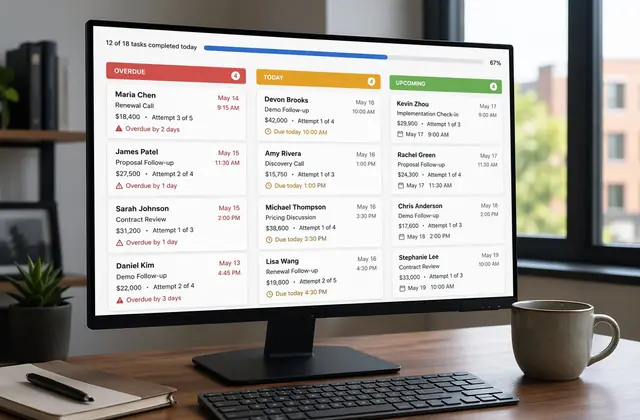
- Opened but not signed after 3 days: create a call task for the deal owner. The client has read it, so they probably have a question. Our guide to CRM follow-up tasks covers how to keep these from piling up.
- Opened several times in one day: create a same-day task. Repeat opens often mean they're sharing it with a partner or comparing options.
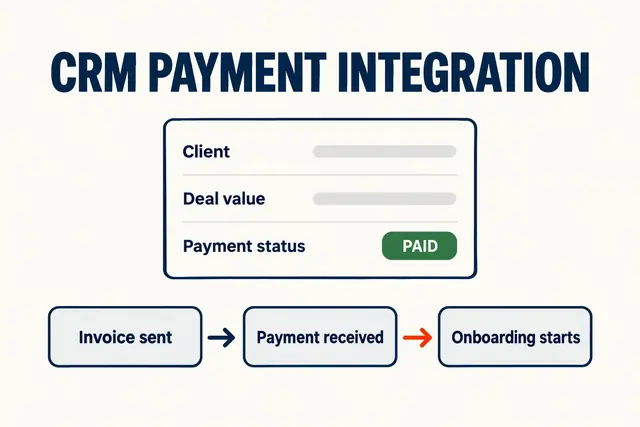
- Signed: move the deal to Won, send the welcome email, and start your client onboarding workflow automatically.
Connect the signature to payment before you call it done
A signed proposal isn't revenue until the first payment clears. The cleanest setups collect payment right after the signature, while the client is still on the page.
GoHighLevel lets you add one-time or recurring payments inside the document. With an add-on like PandaDoc, check that your payment step syncs back to the deal, or you'll end up with "signed" deals that nobody has invoiced.
If billing still lives in a separate app, fix that next. Our guide to CRM payment integration walks through moving invoices into your CRM in phases.
Until then, add one safety net. Create an automation that flags any deal marked "Signed" with no payment recorded after 3 days, and turn it into a task for whoever owns billing. It's a small rule, but it catches the clients who said yes and then got distracted before paying.
Before your first real proposal goes out, send one to yourself. Open it on your phone, sign it, pay $1 if there's a payment step, and confirm the deal moved and the right emails fired. Ten minutes of testing beats explaining a broken link to a new client.
How we write these: we set up and use these tools for real small businesses, check vendor pricing pages and documentation, and link our sources. We earn affiliate commissions from Systeme.io and GoHighLevel; that never decides what goes in a guide.