In this guide (6 sections)
- A shared CRM login is the riskiest setup you can run
- Set CRM user permissions by job, not by person
- How CRM user permissions work in Systeme.io, GoHighLevel and HubSpot
- Turn on two-factor authentication before you add anyone
- Remove CRM access in 15 minutes when someone leaves
- Review who has CRM access every quarter
If your VA logs in with your password, they can export your whole list, change your payment settings and lock you out. CRM user permissions fix that. Give each person their own login and the smallest role that lets them do the job, and you can remove them in minutes.
Set CRM user permissions by job, not by person
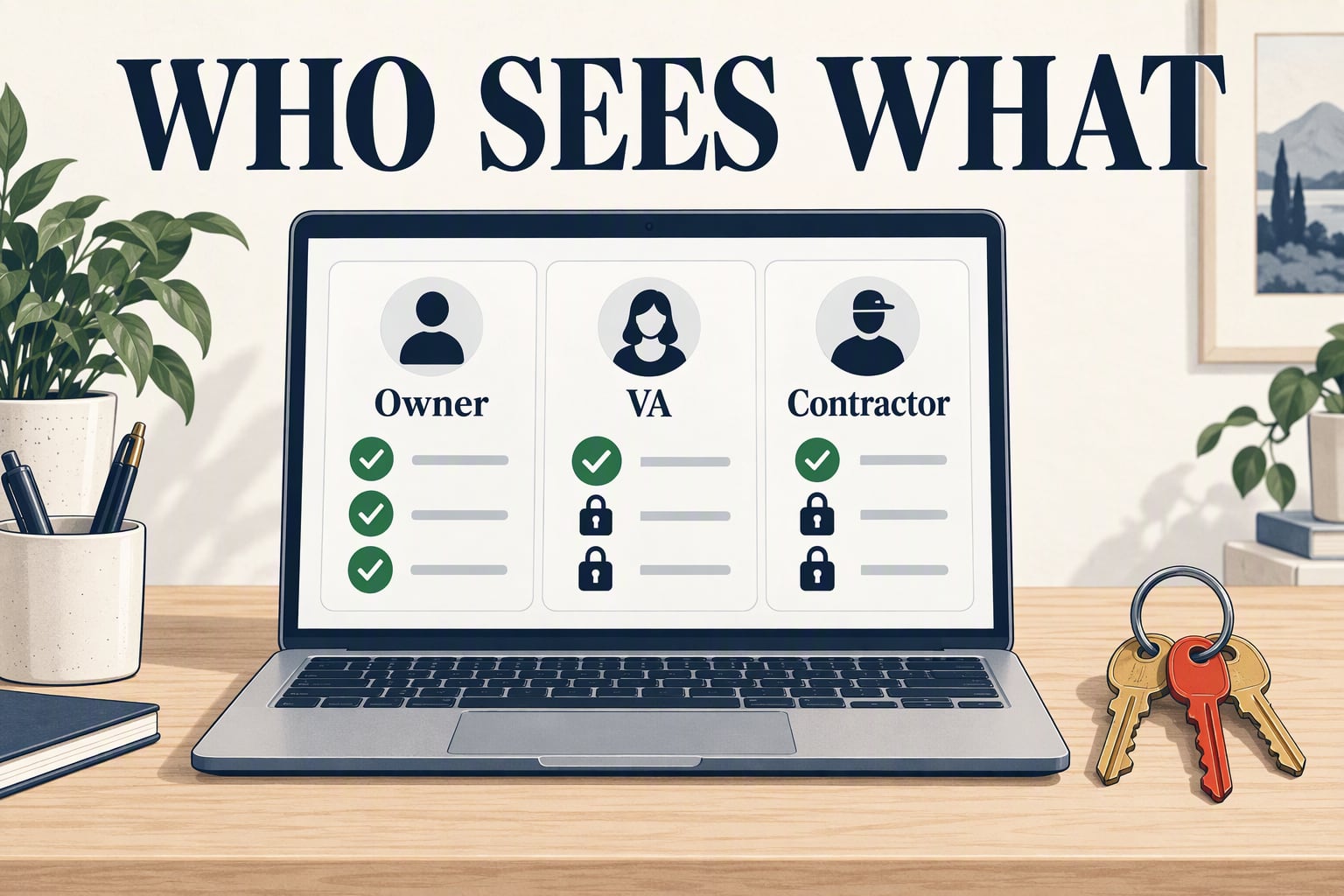
Decide what each role needs to do, then give that role the least access that covers it. Security people call this least privilege. We call it not handing the intern the safe combination.
Most small businesses only need four or five roles. Write them down once, and every new hire gets a role instead of a judgment call made in a hurry. Clear roles also help people actually use the system, which our CRM adoption guide covers in detail.
Say you run a coaching business with 300 leads, a part-time VA and a freelance funnel builder. The VA needs to update contacts and send follow-ups. The funnel builder needs pages and forms. Neither needs to see revenue, export contacts or touch billing.
Two permissions deserve extra caution in any CRM. Export lets someone walk away with your whole list in one click. User management lets someone add new users or raise their own access. Keep both with the owner unless there's a clear reason not to.
Here's a starting map of CRM user permissions you can copy and adjust:
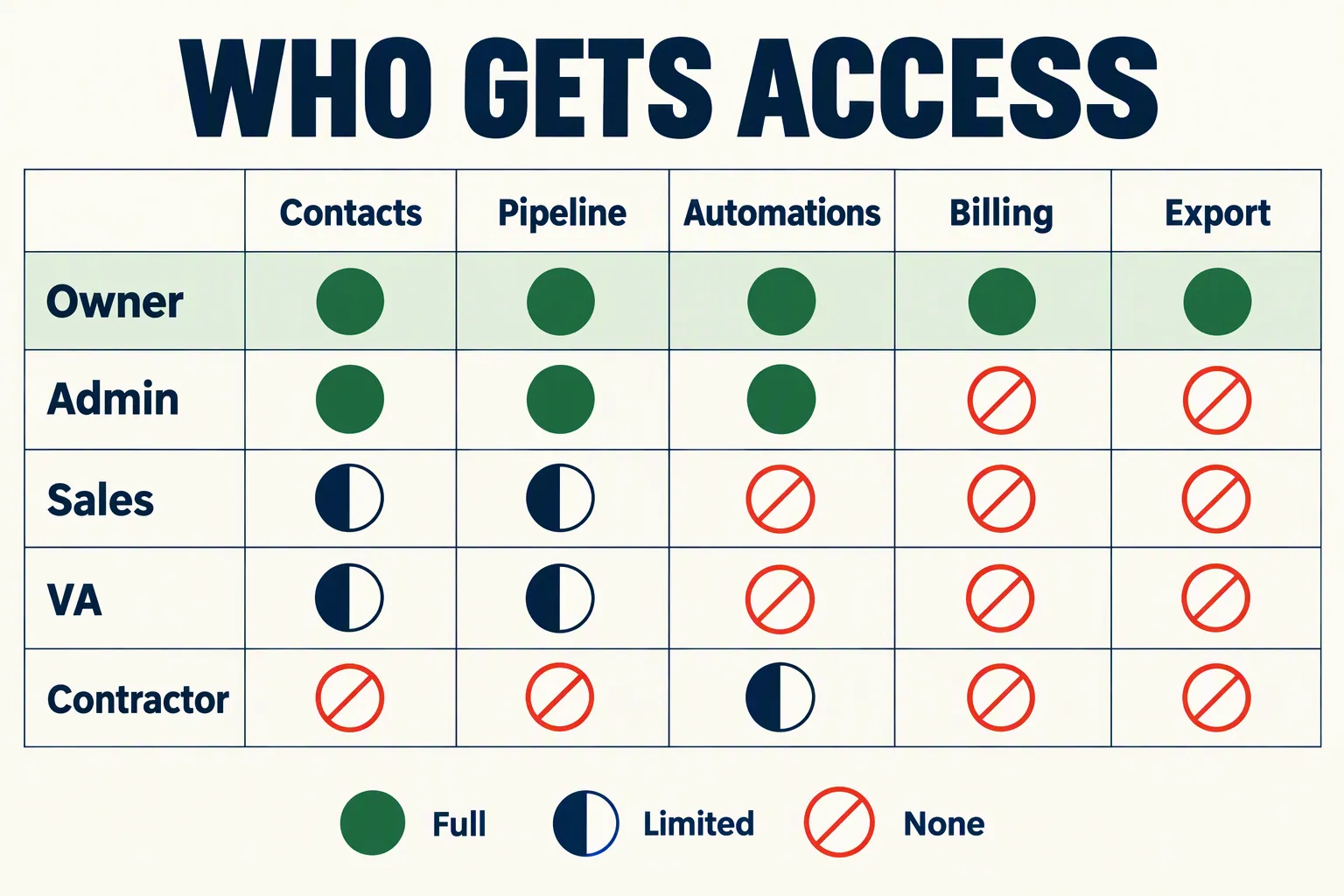
- Owner: you. Full access, billing, exports, user management. Never shared.
- Admin or ops manager: settings, pipelines and automations. No billing or payout changes unless they run finance.
- Sales or closer: their own assigned contacts and deals. No exports, no automation editing.
- VA or assistant: contact updates, tasks and conversations. Ideally only the records assigned to them.
- Contractor (funnel builder, copywriter, tech help): pages, forms, emails or automations they're building. Access expires when the project does.
How CRM user permissions work in Systeme.io, GoHighLevel and HubSpot
All three let you add separate users. They differ in how finely you can slice access and what each extra person costs.
Systeme.io's team management is the simplest. It works on every plan, including free, and offers two roles: Assistant and Admin. Assistants can build funnels, courses and emails without seeing sensitive data. Even admins can't see your subscription, affiliate payouts or payment gateways, and you can revoke anyone in one click.
GoHighLevel gives you more control. Each sub-account user is an Admin or a User, and GoHighLevel's roles and permissions guide shows module-by-module toggles. The setting that matters most is Only Assigned Data, which limits a user to the contacts, opportunities and tasks assigned to them. Turn it on for every closer and VA who doesn't need the whole list. GoHighLevel's $97/month Starter plan includes unlimited users (prices checked October 2026), so there's no seat cost reason to share a login.
HubSpot has the most granular controls, but paid seats add up. Super Admins can build reusable permission sets and apply them to new users, so a "VA" set gives every VA identical access. Watch the seat math, though: a user who needs paid sales or service features needs a paid seat, which is where per-seat pricing bites. Our true cost of a CRM breakdown runs those numbers.
Whichever tool you use, test the role before you hand it over. Create the user, log in as them in a private browser window (or use the tool's "log in as" option if it has one), and click around. If you can find the export button or the billing page, so can they.
If you're a consultant or agency working inside a client's CRM, ask to be invited as a user instead of taking their password. It protects you too. When something breaks, the activity log shows exactly who changed what, and it wasn't you.
- Systeme.io: good if you want two simple roles and zero setup. You won't get record-level limits.
- GoHighLevel: pick it if you have closers or VAs who should only see their own contacts.
- HubSpot: pick it if you need detailed roles across a growing team and can afford the seats.
Turn on two-factor authentication before you add anyone
Separate logins only help if those logins are hard to steal. Two-factor authentication (2FA) is the cheapest fix you'll ever make.
The evidence is strong. A Microsoft research study of Azure AD accounts found MFA cut the risk of account compromise by 99.22%. Even when the password had already leaked, the reduction was 98.56%.
Some CRMs make this easy. HubSpot requires 2FA for every user on Starter, Professional and Enterprise, and free accounts can switch on a requirement for all users. If your CRM can't force it for everyone, make it a condition of access: no 2FA, no login.
Use an authenticator app or passkey where you can. HubSpot itself labels text message codes the least secure option, because phone numbers can be hijacked.
Then protect the owner account most of all. It's the one login that can undo every other safeguard. Save its recovery codes in a password manager, not in a note on your desktop, and make sure the login email is on a domain you control.
A password manager also fixes the other shared-secret problem. If your team must share a login for a tool that has no user roles, share it through the password manager. That way you can revoke it per person and nobody pastes it into a chat.
Remove CRM access in 15 minutes when someone leaves
The riskiest day for your CRM is the day someone leaves and nobody removes them. Do it on their last day, in this order.
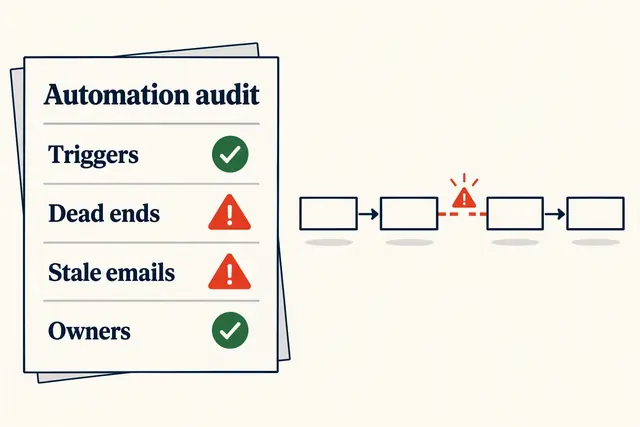
Order matters. Deleting a user before reassigning their work can orphan contacts, leave deals without an owner, and break automations that assign leads or send emails in their name. Our CRM automation audit shows how to spot those breaks if you've already been bitten.
For contractors, plan the exit on day one. Put the project end date in your calendar when you invite them, with a reminder to remove access that afternoon. Short projects are the ones people forget to close.
If someone leaves on bad terms, remove their CRM access before or during the conversation, not after. It feels awkward, but it's far less awkward than finding an exported list later.
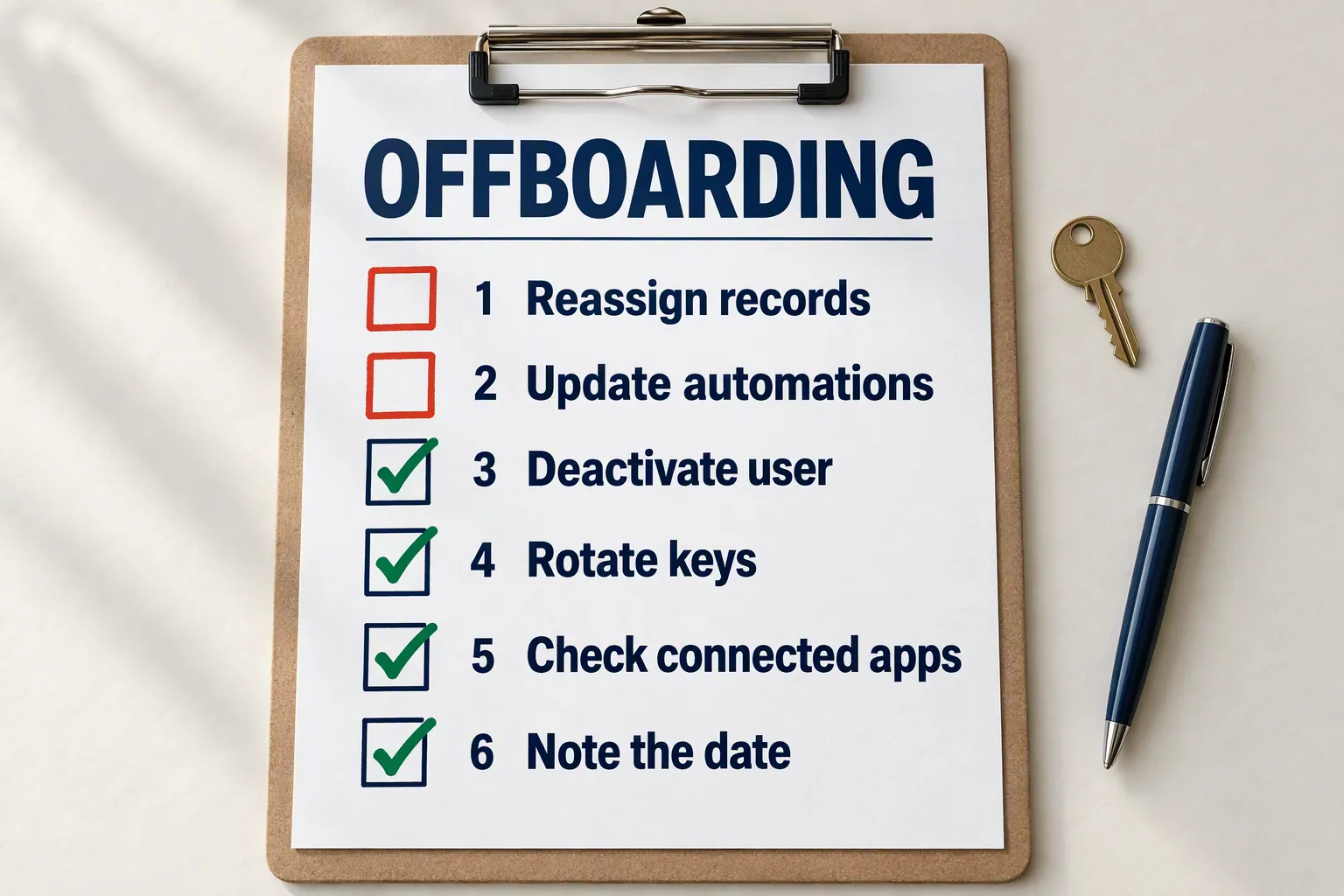
- Reassign their contacts, open deals and tasks to an active teammate.
- Update any automation, round-robin or email sender that uses their name or calendar.
- Deactivate the user rather than deleting them, so their activity history stays intact.
- Rotate any API key, integration token or Zapier connection they created or could see.
- Check connected apps, shared inbox passwords and any phone numbers routed to them.
- Write down the date and what you removed, so you have a record if questions come up later.
Review who has CRM access every quarter
Access creeps. A quarterly 10-minute review catches the contractor whose project ended in spring and still has admin rights.
Open your users list and go down it line by line. If anyone hasn't logged in for 60 days, deactivate them. If a role has more access than the job needs, cut it back.
Put the review on your calendar on the same day as your other admin chores, like the quarterly data cleanup. It's dull work, which is exactly why it gets skipped.
Ask these questions about your CRM user permissions each quarter:
- Does everyone on the list still work with us?
- Has anyone gone 60 days without logging in?
- Does anyone besides the owner have export or billing access, and do they still need it?
- Does every user have 2FA turned on?
- Are there connected apps or API keys nobody recognizes?
How we write these: we set up and use these tools for real small businesses, check vendor pricing pages and documentation, and link our sources. We earn affiliate commissions from Systeme.io and GoHighLevel; that never decides what goes in a guide.