CRM integrations: the 5 connections worth setting up first
Your CRM can probably connect to 200 apps. You need about five. The rest are checkbox features that look great on a comparison chart and collect dust the moment you finish onboarding. According to CRM Beat's 2026 integrations guide, the average small business connects just 3–5 tools to its CRM. That's plenty — if you pick the right ones. The problem isn't finding CRM integrations. It's figuring out which five matter, whether to use native connections or Zapier, and what the real cost is once you factor in time, maintenance, and subscription creep. We'll break down the five connections worth your time, the ones you can skip, and how to avoid paying twice for the same sync.
Your CRM is an island until you connect it
A CRM that isn't connected to your calendar, email, and payment tools is just a fancy spreadsheet. You type the same contact info into three apps. You forget to log calls. You copy-paste invoice data from Stripe into a custom field and fat-finger the amount. Every manual step is a place where data goes missing or arrives late.
This isn't a minor annoyance — it's a measurable drag on your team. According to Digital Silk's CRM research, 41% of sales professionals say technology integration is their single biggest challenge. Not prospecting. Not closing. Just getting their tools to talk to each other.
The math is simple. If your team spends 30 minutes a day re-entering data that an integration could handle, that's 10 hours a month per person. At $40/hour, you're burning $400/month on copy-paste. A $20/month Zapier plan or a free native sync pays for itself before lunch on day one.
CRM integrations aren't about connecting everything. They're about connecting the right things so your data flows where your team already works — without anyone stopping to re-type it.
The five CRM integrations worth setting up first
Not all integrations are equal. These five cover roughly 90% of the manual work most small businesses do around their CRM. Set them up first. Add anything else only when you feel a real gap — not because the marketplace says you can.
Each of these earns its spot because it removes a daily manual task. If you're logging meetings by hand, copying emails into notes, or checking Stripe separately to confirm who paid, that's where your integrations budget should go.
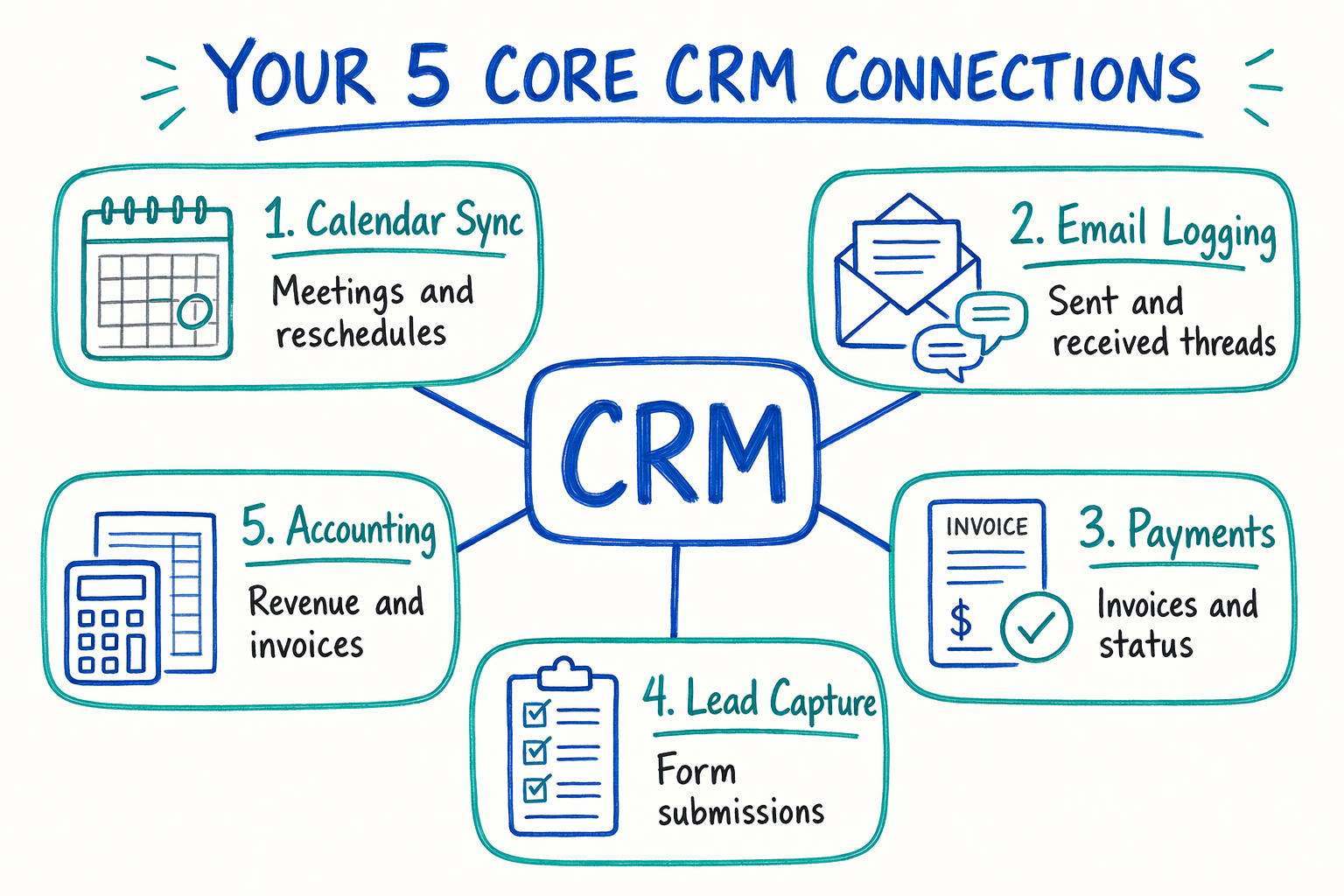
- Calendar sync (Google Calendar, Outlook, or Calendly): Every meeting you book should show up as a CRM activity automatically. Two-way sync means reschedules and cancellations update both places. If your team ever asks "did we log that call?" this integration is overdue.
- Email sync (Gmail or Outlook): Logging emails manually is the fastest way to make your CRM data useless. A proper email integration attaches every sent and received message to the contact record. Anyone on your team can read the full conversation without forwarding threads around.
- Payment processing (Stripe, PayPal, or Square): When a customer pays, your CRM should know immediately. That means updating the deal stage, tagging them as a paying customer, and kicking off post-purchase automations. If your sales rep still checks Stripe in a separate tab to confirm payments, close that tab and set up this sync.
- Form and lead capture (website forms, landing pages, or Typeform): New leads should land in your CRM the moment they submit a form. No CSV exports. No "I'll add them later." Every minute between form submission and CRM entry is a minute where that lead could go cold or get missed entirely.
- Accounting (QuickBooks, Xero, or FreshBooks): Connecting your CRM to your accounting tool keeps invoices, revenue data, and payment status in sync. This matters most for service businesses that invoice manually — it kills the double-entry problem and gives you real revenue numbers inside your pipeline.
Native CRM integrations vs Zapier: when each one wins
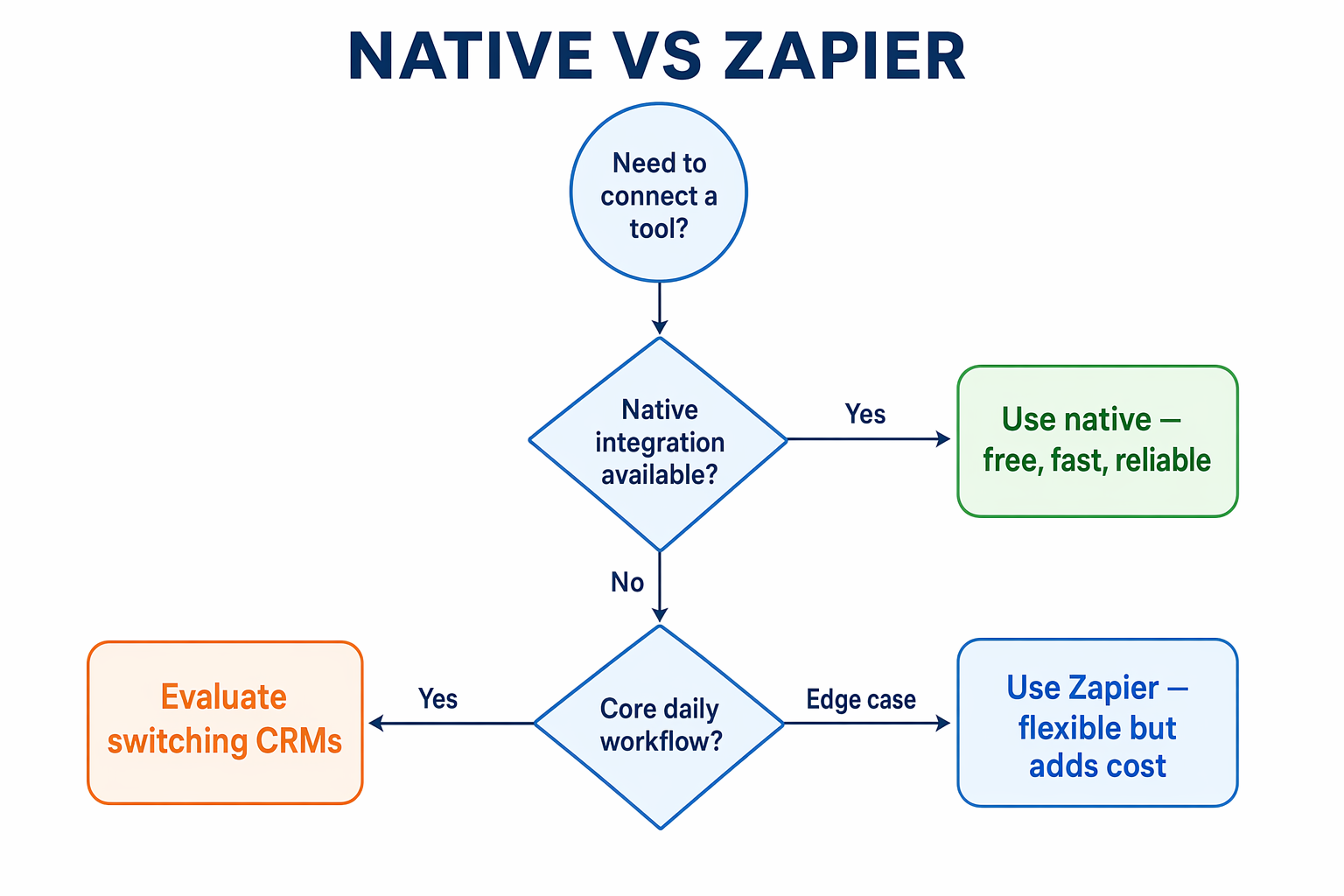
Every CRM gives you two ways to connect tools. Native integrations are built into the platform. Third-party connectors like Zapier or Make sit in the middle as a bridge. The choice isn't just a technical preference — it affects your cost, reliability, and how much maintenance you're signing up for.
Native integrations are maintained by your CRM vendor. They're usually free with your subscription, they sync data in real time, and they break less often. When GoHighLevel connects to Stripe natively, payment data hits the contact record instantly — no delay, no middleware. According to GHL Integrations' directory, GoHighLevel now offers over 50 native connections including Stripe, Google Calendar, QuickBooks, Facebook Ads, and Twilio.
Zapier connects over 6,000 apps and fills the gaps where native options don't exist. Need to connect a niche scheduling tool or an industry-specific invoicing app? Zapier can bridge them. The setup takes minutes, not days.
But Zapier adds a monthly subscription, introduces sync delay, and creates a new failure point. Zaps poll for changes on a schedule, so data can lag by a few minutes. OAuth tokens expire. API changes on either end can break a Zap silently — no error message, just data that stops flowing. And every Zap execution counts toward your monthly task limit, which gets expensive fast if you're syncing high-volume data.
Here's the rule we give every client: use native integrations for your five core connections. Use Zapier only for edge cases where no native option exists. If you're running more than ten Zaps, something in your stack needs to change — either the CRM or the tools around it.
What CRM integrations actually cost you
Native integrations are usually included in your CRM subscription. That's one of their biggest advantages — no extra line item. But the CRM tier you're on determines how much integration access you actually get.
GoHighLevel starts at $97/month with unlimited contacts and full access to native integrations, workflows, and the API. No feature gates. No per-contact upcharges on integrations. For small businesses and agencies, this is the simplest pricing to plan around because nothing is locked behind higher tiers.
HubSpot's Starter tier runs $20/month, but meaningful automation and deeper integrations require the Professional plan at $890/month — plus a $3,000 onboarding fee. HubSpot has the broadest integration marketplace of the three, but accessing the useful pieces costs roughly ten times what GoHighLevel charges for the full stack.
ActiveCampaign's Plus plan starts at $49/month for 1,000 contacts and includes CRM features, automation, and most native integrations. Pricing scales with your contact count, so a 10,000-contact account jumps to $189/month or more. Budget accordingly if your list is growing fast.
If you need Zapier on top of any of these platforms, expect to add $20–$49/month for the Professional plan with 2,000 tasks/month. That sounds cheap until you realize every form submission, email log, and payment update eats a task. A moderately busy small business can burn through 2,000 tasks in two weeks. Zapier's pricing page shows overage rates that climb quickly once you pass your plan limit.
The real cost isn't the subscription — it's the maintenance. A broken integration that goes unnoticed for a month can cost you far more in lost leads and dirty data than the software ever charged. Budget 30 minutes per quarter to test each integration, and you'll avoid the expensive kind of surprise.
How to connect your first integration without breaking anything
Don't connect everything at once. Start with one integration — calendar sync is usually the easiest — and verify it works before moving to the next one.
The process is the same across platforms. Go to your CRM's integration or settings page. Find the tool you want to connect. Authorize the connection with your credentials. Then push a test record through and check that it shows up on both sides. If your CRM creates a calendar event when you book a meeting, and your calendar sends changes back to the CRM when you reschedule, the sync works. If one direction fails, fix the setup before going live.
Don't skip the reverse-direction test. Most integration problems aren't total failures — they're one-way syncs masquerading as two-way syncs. Your CRM pushes data to Google Calendar just fine, but changes in Google Calendar never make it back. That gap is invisible until someone reschedules a meeting and the CRM still shows the old time.
- GoHighLevel: Head to Settings → Integrations. Native connections for Google Calendar, Stripe, QuickBooks, and Mailgun are one-click setups. For anything outside the native list, use the Workflows section to build Zapier or webhook-based connections. All plans include full access starting at $97/month.
- HubSpot: Go to Settings → Integrations → Connected Apps. The marketplace is enormous, but most of the automation-grade integrations require the Professional plan at $890/month. On Starter, you're limited to basic form and email syncs.
- ActiveCampaign: Navigate to Settings → Integrations. The Plus plan at $49/month for 1,000 contacts opens up CRM features and native connections. Their Zapier support is solid if you need to bridge a gap the native list doesn't cover.
Check your integrations quarterly or they'll fail without warning
Integrations don't break loudly. They break like a slow leak — everything looks normal from the dashboard, but data stops flowing somewhere in the middle.
The most common failure is OAuth token expiry. Your CRM connected to Google Calendar six months ago using an authorization token that has since expired. New meetings stop syncing, but nobody notices because the calendar still works fine on its own. The CRM just quietly stops recording meetings, and your activity data develops a gap that grows wider every week.
API changes are the second biggest culprit. Your payment processor pushes an API update, and the Zapier connection that synced payment data to your CRM stops mid-transfer. No error email. No dashboard alert. Just a widening gap between what Stripe knows and what your CRM shows.
Set a quarterly reminder. Open each connected integration and push a test record through. Create a test contact, trigger a form submission, book a fake appointment, process a test payment. If the data shows up correctly on both sides, the integration is healthy. If it doesn't, you just saved yourself a month of lost data.
If your automations depend on these integrations, a dead integration means dead automations — and dead automations mean lost leads. And if you're still choosing a CRM, integration reliability should rank near the top of your checklist, right next to pricing and ease of use.