In this guide (6 sections)
- Your CRM's recycle bin isn't a CRM data backup
- What a CRM data backup should include (and what exports miss)
- How to export CRM data in Systeme.io, GoHighLevel and HubSpot
- Set up a monthly CRM data backup in 30 minutes
- Test your CRM backup and plan the restore before you need it
- Keep CRM backups safe, short-lived and private
A CRM data backup is the copy of your list that still exists after a bad import, a rogue workflow or a locked account. Most small businesses don't have one. They assume the CRM keeps everything forever, and it doesn't. Here's what to save, where to put it, and how to check it works.
Your CRM's recycle bin isn't a CRM data backup
Deleted contacts sit in a recycle bin for a short time, then they're erased. That window is your only safety net unless you keep your own copy.
The windows are shorter than most people think. GoHighLevel's restore guide says a contact can be restored within 60 days only. HubSpot gives you 90 days, and its restore records guide notes that permanent privacy deletions skip the recycle bin entirely.
Data loss in cloud apps is common, too. In the 2025 State of SaaS Backup and Recovery Report, 87% of the IT professionals surveyed said they lost SaaS data in 2024. Only 40% felt confident their backup could protect critical data in a disaster. Backupify sells backup software, so read that with some salt, but the pattern is hard to ignore.
Your data can also go missing without anyone deleting it. If a card payment fails or the vendor flags your account, you can lose access to the login for days. A copy you control means you can still reach your clients while you sort it out.
Most CRM data loss isn't dramatic. It's a quiet mistake that nobody notices for weeks, which is exactly how you blow past a 60-day window.
Here's how small businesses usually lose CRM data:
- A CSV import overwrites good phone numbers and tags with blank or wrong values.
- A workflow with a "delete contact" or "remove tag" step fires on the wrong list.
- A VA or contractor bulk-deletes contacts while "cleaning up".
- A failed card payment pauses or suspends the account right before a launch.
- You decide to switch tools and discover the export leaves half your history behind.
What a CRM data backup should include (and what exports miss)
A good CRM data backup covers the records you'd need to keep selling next week. That means contacts, deals and notes, not just a list of email addresses.
Every CRM export has gaps, and you need to know yours before you need the file. GoHighLevel's contact export guide says the CSV only includes the columns visible in your contacts table. Notes over 255 characters may be cut short, and past emails and SMS logs aren't included at all.
HubSpot's export is similar. It downloads property values and associations, but calls, notes and other activities need a separate export, per HubSpot's export guide.
Automations are the biggest gap. None of these three tools hands you a file of your workflows that you could load into another CRM. If a workflow gets deleted or you switch tools, you rebuild it by hand, so write it down while it works.
GoHighLevel has one partial fix. A snapshot copies your workflows, pipelines and custom fields into another GoHighLevel account, but not your contacts or conversations. It's a useful setup backup, as long as you stay on GoHighLevel.
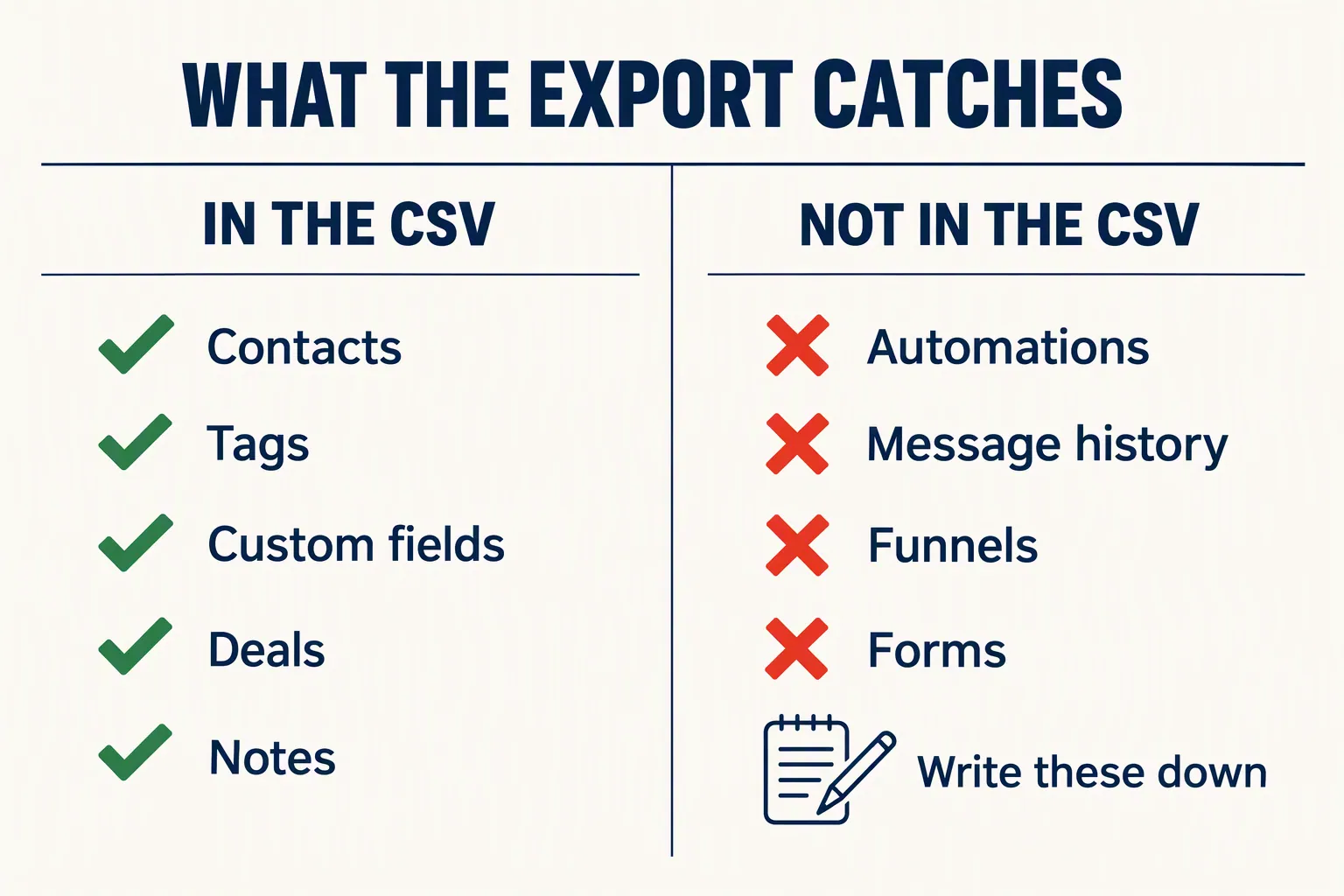
- Contacts with every custom field and tag column switched on.
- Deals or opportunities with stage, value, owner and close date.
- Notes and tasks, exported separately if your CRM splits them out.
- A written map of each automation: trigger, steps, delays and who it emails.
- Screenshots of your pipeline stages, custom field list and key form settings.
How to export CRM data in Systeme.io, GoHighLevel and HubSpot
All three let you export contacts to a CSV in a few clicks. The catch is where the file goes and how long it stays there.
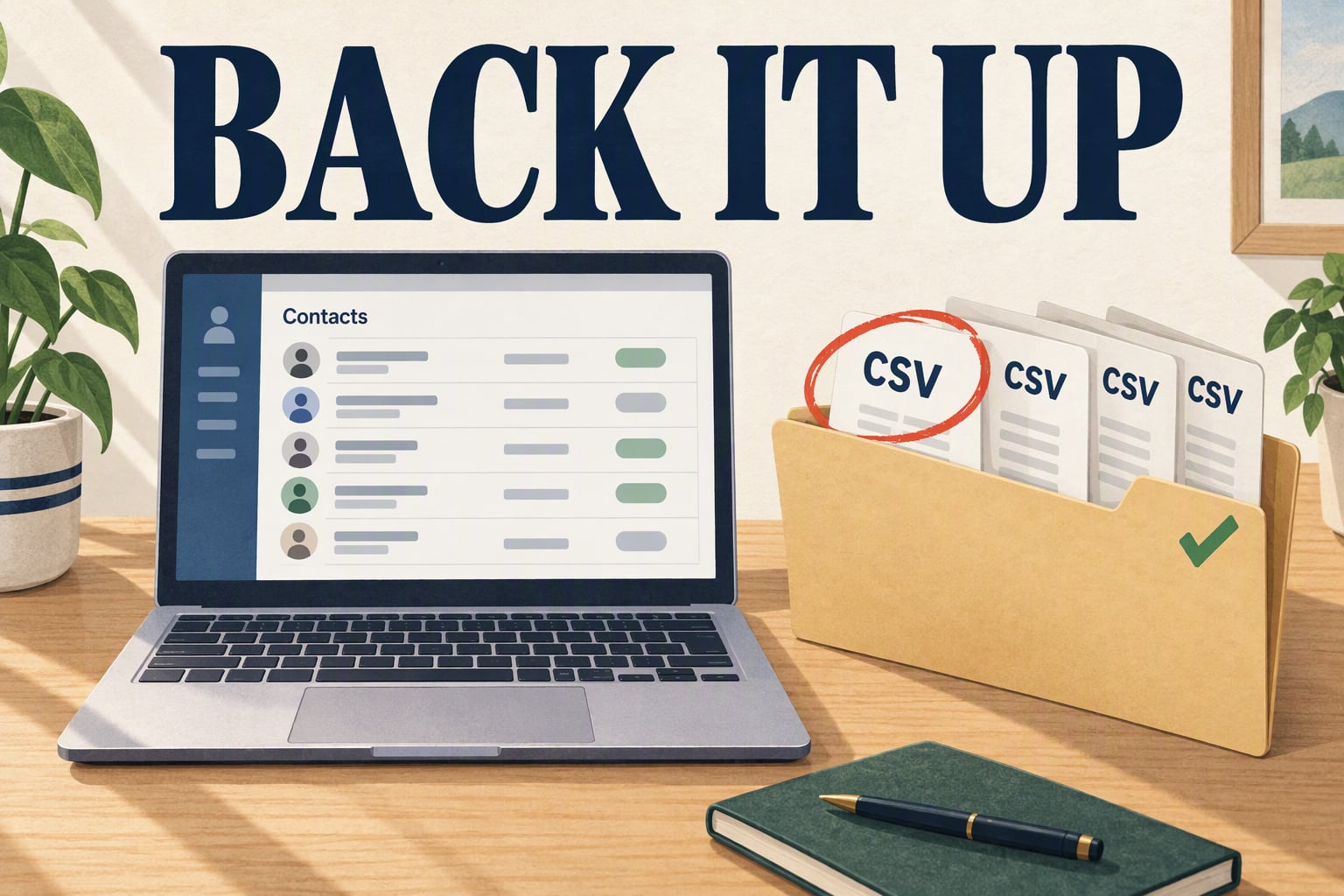
Systeme.io: go to CRM, then Contacts, select everyone, click More actions, then Export. The file is emailed to your account address. Systeme.io's export guide says the download is deleted after 3 days, so save it the same day.
GoHighLevel: open Contacts, then Smart Lists, select all contacts, and choose Export. First, click Manage Fields and switch on every column you care about, because hidden columns don't export. The file appears in Bulk Actions and stays there for 30 days.
Only GoHighLevel admin users can export, which is a good thing. Our CRM user permissions guide explains why export should stay with the owner.
HubSpot: open the All contacts view and choose Export. Repeat for companies and deals. If you rely on call logs or notes, export those activities too.
Say you run a coaching business on GoHighLevel with 2,000 contacts and a sales pipeline. Your monthly export is two files: contacts with all fields, and opportunities. Add your workflow map, and you've covered what you'd need to rebuild.
- Systeme.io: good if you want a quick contact export, but save the emailed file within 3 days.
- GoHighLevel: switch on all columns in Manage Fields before every export.
- HubSpot: export each object (contacts, companies, deals) and activities separately.
Set up a monthly CRM data backup in 30 minutes
Pick one day a month, export the same files in the same way, and store them in the same place. Consistency matters more than any fancy tool.
Most IT guidance uses the 3-2-1 rule: three copies of your data, on two different kinds of storage, with one kept somewhere else. For a small business, that's simple. The live data sits in your CRM, a copy goes in a cloud drive, and a second copy goes on an encrypted external drive or a different cloud account.
Name each file the same way, such as "crm-contacts-2026-11-01.csv". When something breaks, you'll want to find the last good version in seconds, not scroll through "export (7).csv".
Do a backup before any risky change, too. That includes a big import, a new workflow that deletes or edits records, and any CRM data cleanup session.
Your workflow map doesn't need to be fancy. A shared doc with one short paragraph per automation is plenty. If you run a quarterly CRM automation audit, update the map on the same day.
Here's the monthly routine:
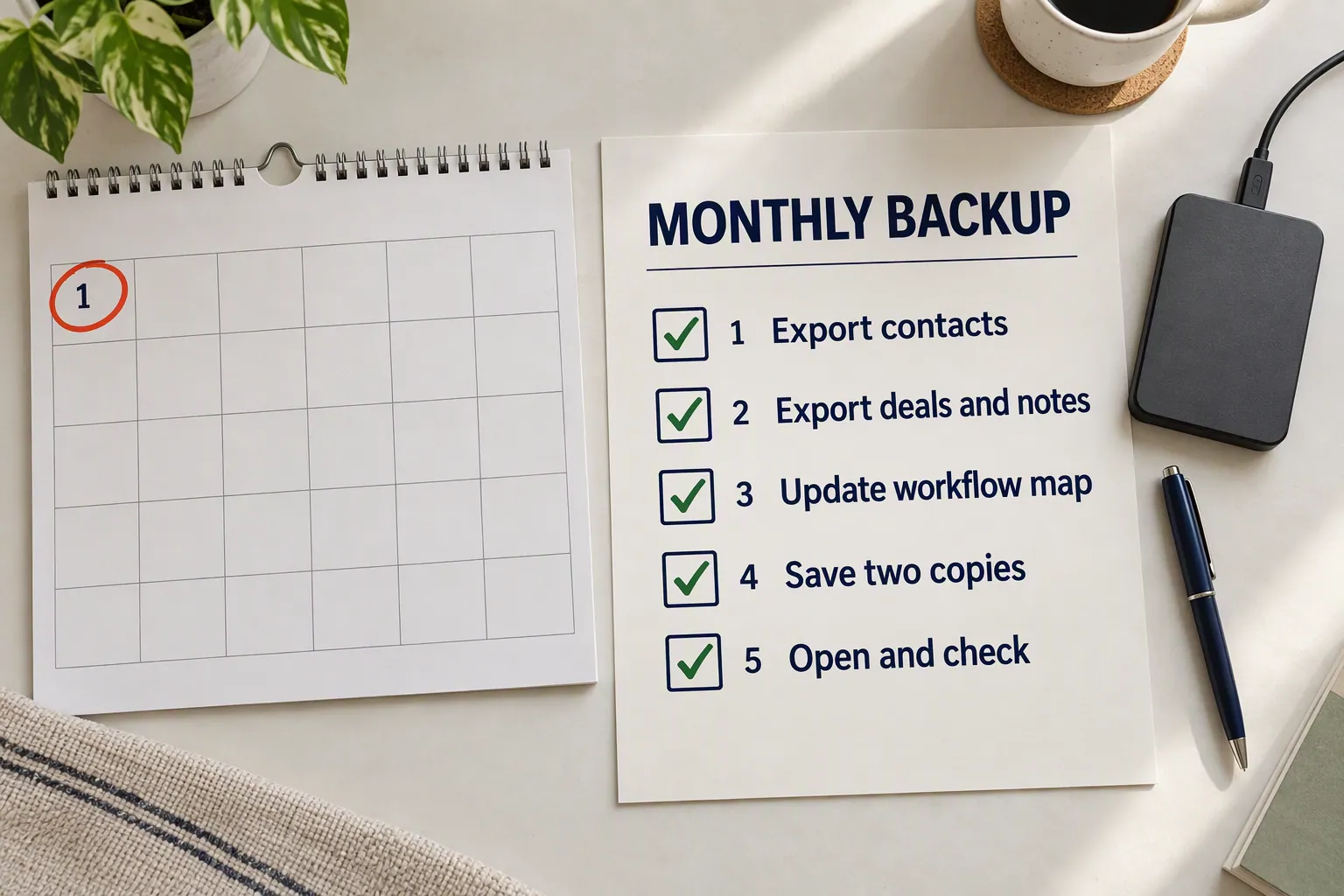
- Export contacts with all fields and tags switched on.
- Export deals, notes and tasks if your CRM stores them separately.
- Update your workflow map if you changed any automation this month.
- Save one copy to a shared cloud folder and one to a second location.
- Open the file, check it, and log the date and row count in a simple sheet.
Test your CRM backup and plan the restore before you need it
A backup you've never opened is a guess. Spend five minutes checking each file on the day you save it.
Start with the row count. If your CRM shows 2,140 contacts and the file has 1,980 rows, something filtered them out. Next, check the columns. Tags, custom fields and lead source should all be there, not just name and email.
Once a year, do a real restore test. Import a small sample of 20 contacts into a free trial or a test sub-account, and see whether the fields map back cleanly. Our CRM migration checklist walks through field mapping in more detail, and the same steps apply here.
If the test import comes out messy, fix your export settings now. Finding that out during a real emergency is a much worse afternoon.
Also write down your restore steps while things are calm. When data goes missing, people panic, re-import an old file over newer records, and make the damage worse.
Start with the CRM's own recycle bin, because a native restore brings back more than a CSV can. GoHighLevel says a restored contact comes back with its opportunities, notes, tasks, conversations and appointments. Your CSV backup can't do that, so use it only for records the recycle bin no longer has.
HubSpot adds two warnings in its restore guide. Turn off the workflow that deleted the contacts first, or it may delete them again. And the restore tool shows only 10,000 records at a time, so big restores happen in batches.
If you've just lost data, work through it in this order:
- Stop the cause: pause the workflow, import or user that removed the records.
- Check the recycle bin and restore everything still inside the 60- or 90-day window.
- Compare the restored count against your last backup log to see what's still missing.
- Import only the missing records from your backup, tagged "restored" so you can review them.
- Rebuild any lost automations from your workflow map, then test them on one contact.
Keep CRM backups safe, short-lived and private
Your backup holds the same personal data as your CRM, so treat it with the same care. A CSV of every client sitting in your downloads folder is a risk of its own.
Limit who can open the backup folder to you and one trusted person. Turn on two-factor login for the cloud drive. Don't email backup files around or drop them in a team chat.
Keep the last 12 monthly copies and delete older ones. Old backups don't help much, and they still contain people who asked to be removed. If someone requests deletion, remove them from the CRM, and let the old files age out on schedule.
Should you pay for an automated backup tool? For a solo business with a few thousand contacts, a manual monthly export is usually enough. Paid tools make more sense once several people edit records every day, or if losing a week of changes would cost you real money.
How we write these: we set up and use these tools for real small businesses, check vendor pricing pages and documentation, and link our sources. We earn affiliate commissions from Systeme.io and GoHighLevel; that never decides what goes in a guide.